Implementing the Bird
Hello! 👻
In this chapter we will draw the bird, read input from the keyboard, apply gravity, make it jump and also handle collisions.
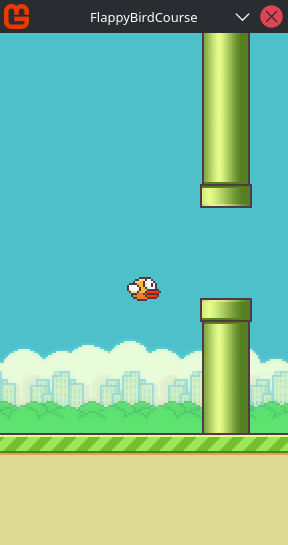
Demo of this chapter done:
If you haven't read the previous chapter yet: Drawing the Ground and Implementing the Pipes (part 3)
Summary:
- Setting Up Bird's Initial State and Drawing It
- Reading Input From Keyboard
- Making the Bird Fall
- Making the Bird Jump
- Collisions
- Collision With Ground and Pipes
- Reseting
- Scoring
- Adding Animation
Setting Up Bird's Initial State and Drawing It
Lets begin by setting up some initial variables for our bird:
public class Bird
{
    private readonly Texture2D _texture;

    private Rectangle _srcRect = new Rectangle(6, 982, 34, 24);

    public Vector2 Position;

    public Bird(Texture2D texture, Vector2 position)
    {
        _texture = texture;
        Position = position;
    }

    public void Draw(SpriteBatch batch)
    {
        Vector2 origin = _srcRect.Size.ToVector2() / 2f;
        batch.Draw(_texture, Position, _srcRect, Color.White, 0f,
            origin, 1f, SpriteEffects.None, 0f);
    }
}
The relevant part here is:
I'm drawing the bird's sprite with it's anchor at the center, this is just for conveniece. With the origin at the center we just need to take care of where the bird's collider should be placed and not both, the collider and the sprite.
Lets create an instance of it and draw:
public class Game1 : Game {
    ...
    private Vector2 _birdInitialPosition;
    private Bird _bird;
    ...
    protected override void LoadContent() {
        ...
        _birdInitialPosition = new Vector2(
            _graphics.PreferredBackBufferWidth / 2f,
            _graphics.PreferredBackBufferHeight / 2f
        );
        _bird = new Bird(_texture, _birdInitialPosition);
    }
    ...
    protected override void Draw(GameTime gameTime)
    {
        ...
        _bird.Draw(_spriteBatch);

        _spriteBatch.End();
        ...
    }
    ...
    protected override void Dispose(bool disposing)
    {
        _texture.Dispose();
        _spriteBatch.Dispose();
        base.Dispose(disposing);
    }
}
The _birdInitialPosition is where we will place our bird when we reset the game after a game over, for example.
One thing that I forgot in the previous chapter was to liberate the resources that our game is consuming. You can do this by calling Dispose from both, our texture and the SpriteBatch inside the Dispose of the Game1 class.
😵💫 Actually, Game1's Dispose is called when the application/game is closing, which means that freeing these resources at this stage is redundant because any leaked memory will be freed automatically. This project consist of one scene, but in a game with multiple scenes, and you expects that the player will keep the game active for hours, freeing resources will be really important (during the change of one scene to another, for example). So, even being redudant in this case, cultivating this habit now will be good.
Reading Input From Keyboard
Read input from the keyboard in MonoGame is very simple actually:
public class Game1 : {
    ...
    protected override void Update(...) {
        var keyboard = Keyboard.GetState();
        if (keyboard.IsKeyDown(Keys.X))
            Console.WriteLine("x is down");

        if (Keyboard.IsKeyUp(Keys.D))
            Console.WriteLine("d is up");
    }
    ...
}
You can get input from the mouse similarly:
protected override void Update(...) {
    var mouse = Mouse.GetState();

    if (mouse.LeftButton == ButtonState.Pressed) {
        Console.WriteLine("lmb is down");
    }

    Console.WriteLine(mouse.Position);
}
But I'll left the mouse for later.
Keyboard.GetState will return a struct containing the current state of the keyboard.
The state includes all keys being held and not. But there is some limitations like if you want to check if some key was pressed just the frame that you pressed the key, KeyboardState doesn't provide this.
And we will need this. Probably there is many ways to solve this, but the most convenient is this:
public class Game1 : Game {
    ...
    private KeyboardState _prevKbState;
    private KeyboardState _currentKbState;
    ...
    protected override void Update(...) {
        _prevKbState = _currentKbState;
        _currentKbState = Keyboard.GetState();
        ...
        if (IsKeyJustPressed(Keys.F))
            Console.WriteLine("f was just pressed");

        if (IsKeyJustReleased(Keys.Space))
            Console.WriteLine("space was just released");
    }
    ...
    public bool IsKeyJustPressed(Keys key)
    {
        return _currentKbState.IsKeyDown(key) && _prevKbState.IsKeyUp(key);
    }
    public bool IsKeyJustReleased(Keys key)
    {
        return _currentKbState.IsKeyUp(key) && _prevKbState.IsKeyDown(key);
    }
    ...
}
Why? because you can use this for absolutely any key and also you can replicate this pattern with GamePadState and MouseState.
Since KeyboardState is the current state of the keyboard (more specifically the state in the moment that Keyboard.GetState is called) we are just doing a little trick: saving the previous state of the keyboard and comparing it with the current/new state:
Frame    Previous    Current    JustPressed?
-----    --------    -------    ------------
0        false       false      false
1        false       true       true   <- pressed
2        true        true       false  <- held down
3        true        false      false  <- released
🤔 Notice that JustPressed is only true during the frame where the key changes from up to down. As soon as the key remains pressed, both states become equal and the condition stops being true. This is possible because KeyboardState is a struct and structs are copy by value.
💡 If you want to know more about the GamePad, Mouse, Keyboard and even Touch states and how to use them, look this MonoGame's guide: 11: Input Management - MonoGame.
Just for convenience I created a wrapper over the keyboard state:
public static class KeyboardExtended
{
    private static KeyboardState _prevKbState;
    private static KeyboardState _currKbState;

    public static void Update()
    {
        _prevKbState = _currKbState;
        _currKbState = Keyboard.GetState();
    }

    public static bool IsKeyDown(Keys key) => _currKbState.IsKeyDown(key);
    public static bool IsKeyUp(Keys key) => _currKbState.IsKeyUp(key);
    public static bool IsKeyJustPressed(Keys key) => IsKeyDown(key) && _prevKbState.IsKeyUp(key);
    public static bool IsKeyJustReleased(Keys key) => IsKeyUp(key) && _prevKbState.IsKeyDown(key);
}
public class Game1 : Game {
    ...
    protected override void Update(...) {
        KeyboardExtended.Update();
        ...
        if (KeyboardExtended.IsKeyJustPressed(Keys.F))
            Console.WriteLine("f was just pressed");

        if (KeyboardExtended.IsKeyJustReleased(Keys.Space))
            Console.WriteLine("space was just released");
        ...
    }
}
Nice, we can now apply gravity to the bird and make it jump.
Making the Bird Fall
We will need a second variable that I'll call as velocity, it will make our life easy for simulate acceleration:
public class Bird
{
    ...

    public Vector2 Velocity;
    public float Gravity = 0.1f;

    ...

    public void Update()
    {
        Velocity.Y += Gravity;

        float groundY = 400f;
        if (Position.Y + Velocity.Y >= groundY)
        {
            Velocity.Y = 0f;
            Position = new Vector2(Position.X, groundY);
        }

        Position += Velocity;
    }

    ...
}
We are accumulating gravity in Velocity.Y and then adding the velocity to the position to simulate acceleration by gravity. If you add the gravity directly to the Y of the bird it will just move down linearly, with the same speed.
The if (...) is checking if the bird exceeded some value in the y and if this is the case, we zero Velocity.Y and update the bird's y to this value. The value I'm using is simulating as if the bird had collided with the ground.
Note that in the new Vector2(Position.X, groundY) I'm preserving the current X position of the bird. I don't want to move the bird horizontally, just vertically.
⚠️ Of course, don't forget to call the bird's Update method somewhere inside the Game1 class.
💡 Change some values, test things, you learn a lot by messing around!
Yeah, this preview isn't very good, but probably you already saw the result.
Making the Bird Jump
To make it jump is very simple actually, we just need to set Velocity.Y in some moment, in this case, when some key from the keyboard is pressed:
public class Bird {
    ...
    public float Gravity = 0.25f; // changed
    public float JumpImpulse = 4f;
    ...
    public void Update()
    {
        ...

        if (KeyboardExtended.IsKeyJustPressed(Keys.Space))
        {
            Velocity.Y = -JumpImpulse;
        }

        Position += Velocity;
    }
}
Collisions
Before we begin, let's do a small change in the Game1 class to make the game begin only when space is pressed:
public class Game1 : Game
{
    ...
    private bool _start;
    ...
    protected override void Update(GameTime gameTime)
    {
        ...

        if (KeyboardExtended.IsKeyJustPressed(Keys.Space) && !_start)
        {
            _start = true;
        }

        if (_start)
        {
            ScrollBackground();
            ScrollGround();

            HandlePipesSpawning(gameTime);
            ScrollPipes();
            DestroyPipesOutsideScreen();

            _bird.Update();
        }

        base.Update(gameTime);
    }
}
The order matters here, this snippet:
if (KeyboardExtended.IsKeyJustPressed(Keys.Space) && !_start)
{
    _start = true;
}
running before if (start) {...} will make that when you press space the game begins and the bird jump right after.
Ok, we need to setup the collider for both: pipes and bird.
Before this, let's create create a clipping rectangle to draw this part of the texture:
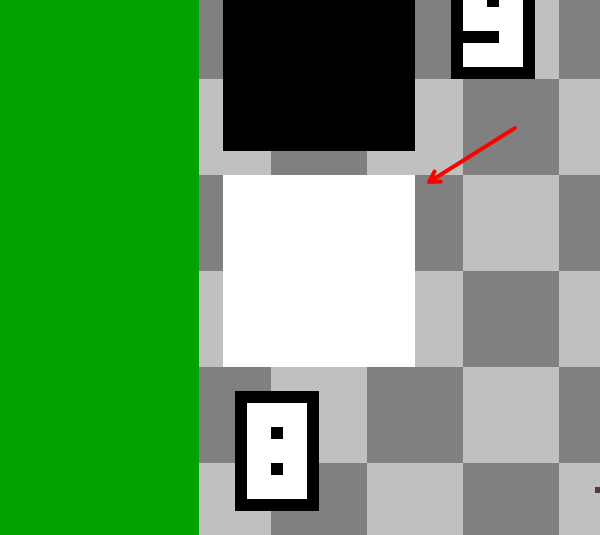
You can take any part of this sprite, even:
Rectangle clipRect = new Rectangle(585, 449, 1, 1);
a part of 1x1px because we will scale it using the destination rectangle parameter (as I already showed in the part 2).
We will use this part of the texture to draw our colliders, just to make sure that their size and position are correct.
public class Bird
{
    ...
    public Rectangle Collider = new Rectangle(0, 0, 18, 18);
    ...
    public void Update()
    {
        ...

        Position += Velocity;

        Collider.Location = Position.ToPoint() - Collider.Size / 2;
    }
    public void Draw(SpriteBatch batch, Rectangle pixelSrcRect)
    {
        ...
        batch.Draw(_texture, Collider, pixelSrcRect, Color.HotPink * 0.5f);
    }
}
I'm defining the position of the bird's collider to the same position as the sprite after updating the sprite's position. For this game, the order isn't relevant, but for a game that will handle physics collision the order matters.
public class Pipe
{
    ...
    public Rectangle TopPipeCollider = new Rectangle(0, 0, 52, 320);
    public Rectangle BottomPipeCollider = new Rectangle(0, 0, 52, 320);

    public Vector2 Position
    {
        get => _position;
        set
        {
            ...
            TopPipeCollider.Location = TopPipePosition.ToPoint();
            BottomPipeCollider.Location = BottomPipePosition.ToPoint();

            _position = value;
        }
    }
    ...
    public void Draw(SpriteBatch batch, Rectangle pixelSrcRect)
    {
        ...
        batch.Draw(_texture, TopPipeCollider, pixelSrcRect, Color.Red * 0.5f);
        batch.Draw(_texture, BottomPipeCollider, pixelSrcRect, Color.Red * 0.5f);
    }
}
And of course, you need to pass the clipping rectangle of the white sprite to the respective methods:
public class Game1 : Game {
    ...
    private Rectangle _pixelSrcRect = new Rectangle(585, 449, 16, 16);
    ...
    protected override void Draw(GameTime gameTime)
    {
        ...
        foreach (var pipe in _pipes)
            pipe.Draw(_spriteBatch, _pixelSrcRect);
        ...
        _bird.Draw(_spriteBatch, _pixelSrcRect);
        ...
    }
    ...
}
When the game begin, the collider of the bird will be positioned incorrectly, but this isn't a problem because it will be updated to the correct position when the game start:
Collision With Ground and Pipes
What we will do is simply detect if the bird's collider is intersecting with any pipe or deliberately you make it fell to the floor. If any of these are the case then we should stop the level scrolling and disable the bird's ability of jump.
My approach to solving this was passing the list of pipes to the bird's Update method and checking collision from there and expose some actions to perform something from the Game1 class:
public class Bird
{
    ...
    public event Action IsCollidingWithFloor;
    public event Action IsCollidingWithPipes;
    private bool _isCollidingWithPipe;
    ...
    public void Update(List<Pipe> pipes)
    {
        ...
        // colliding with the ground
        if (Position.Y + Velocity.Y >= groundY)
        {
            ...
            IsCollidingWithFloor?.Invoke();
        }

        // colliding with the pipes
        foreach (var pipe in pipes)
        {
            if (Collider.Intersects(pipe.BottomPipeCollider) || Collider.Intersects(pipe.TopPipeCollider))
            {
                _isCollidingWithPipe = true;
                IsCollidingWithPipes?.Invoke();
            }
        }

        if (!_isCollidingWithPipe)
        {
            if (KeyboardExtended.IsKeyJustPressed(Keys.Space))
            {
                Velocity.Y = -JumpImpulse;
            }
        }
        ...
    }
    ...
}
My idea is: if the bird hit the floor we can consider this as game over immediately (and show the game over text).
But if the bird hit some pipe, before consider as gameover we need to stop scrolling the ground, background and pipes, let the bird fall and when it reaches the floor, game over should become true:
public class Game1 : Game {
    ...
    private bool _start;
    private bool _gameOver;
    private bool _scroll;
    ...
    protected override void LoadContent()
    {
        ...
        _bird = new Bird(_texture, _birdInitialPosition);
        _bird.IsCollidingWithFloor += () =>
        {
            _gameOver = true;
            _scroll = false;
            Console.WriteLine("game over");
        };
        _bird.IsCollidingWithPipes += () => { _scroll = false; };
    }
    ...
    protected override void Update(GameTime gameTime)
    {
        ...
        if (KeyboardExtended.IsKeyJustPressed(Keys.Space) && !_start)
        {
            _start = true;
            _scroll = true;
        }

        if (_start)
        {
            if (_scroll)
            {
                ScrollBackground();
                ScrollGround();

                HandlePipesSpawning(gameTime);
                ScrollPipes();
                DestroyPipesOutsideScreen();
            }

            if (!_gameOver)
                _bird.Update(_pipes);
        }
        ...
    }
}
Reseting
Now we need to reset our game by removing the pipes created during the game and reseting the bird's position:
public class Bird {
    ...
    public void Reset()
    {
        Velocity = Vector2.Zero;
        _isCollidingWithPipe = false;
    }
}
public class Game1 : Game {
    ...
    protected override void Update(GameTime gameTime)
    {
        ...
        if (_start)
        {
            ...
            if (!_gameOver)
                _bird.Update(_pipes);

            if (_gameOver)
            {
                if (KeyboardExtended.IsKeyJustPressed(Keys.Space))
                    Reset();
            }
        }
        ...
    }
    ...
    private void Reset()
    {
        _bird.Reset();
        _bird.Position = _birdInitialPosition;

        _pipes.Clear();
        _scroll = false;
        _start = false;
        _gameOver = false;
        _pipesSpawnElapsed = 0f;
    }
}
Realize that the code snippet that resets our game is placed after the part that updates the bird, this is necessary to avoid that right after pressing space to reset the game it begans immeditely.
Scoring
To end this chapter what we need is score when the bird pass through the pipes.
We need a second collider to detect when the bird pass through the pipes:
public class Pipe {
    ...
    public Rectangle ScoringCollider = new Rectangle(0, 0, 10, 80);
    public Vector2 Position
    {
        ...
        set
        {
            ...
            ScoringCollider.Location = value.ToPoint() - ScoringCollider.Size / 2;
            ...
        }
    }
    ...
    public void Draw(SpriteBatch batch, Rectangle pixelSrcRect)
    {
        ...
        batch.Draw(_texture, ScoringCollider, pixelSrcRect, Color.Blue * 0.5f);
    }
}
Now we need to handle when the bird pass over the scoring collider, I decided to trigger another action when that happens, but we need to ensure that it only runs once after entering the collider:
public class Bird {
    ...
    public event Action Scoring;
    private bool _enteredScoringCollider;
    ...
    public void Update(List pipes)
    {
        ...

        HandleGroundCollision();
        HandlePipesCollisions(pipes);

        if (!_isCollidingWithPipe)
        {
            if (KeyboardExtended.IsKeyJustPressed(Keys.Space))
            {
                Velocity.Y = -JumpImpulse;
            }

            bool isInsideCollider = false;
            foreach (var pipe in pipes)
            {
                if (Collider.Intersects(pipe.ScoringCollider))
                {
                    isInsideCollider = true;
                    break;
                }
            }

            if (isInsideCollider && !_enteredScoringCollider)
            {
                _enteredScoringCollider = true;
                Scoring?.Invoke();
            }
            else if (!isInsideCollider)
            {
                _enteredScoringCollider = false;
            }
        }
        ...
    }
    ...
    public void Reset()
    {
        ...
        _enteredScoringCollider = false;
    }
}
Now we just need to add a callback to this Scoring event:
By the way, I also moved the snippets that handle the collisions with ground and pipes to individual methods.
public class Game1 : Game {
    ...
    protected override void LoadContent()
    {
        ...
        _bird = new Bird(_texture, _birdInitialPosition);
        ...
        _bird.Scoring += () => _score++;
    }
    ...
    private void Reset()
    {
        ...
        _score = 0;
    }
}
Nice, add a Console.WriteLine(_score) inside the Update method of Game1. We will use this to make sure that the score is being increased just a few times:
Adding Animation (30/08/2026)
A few days after concluding the part 5 of this course I noticed that I forgot to show how to animate the bird (that is the reason why many footages from part 5 the bird isn't animated). So this part here is an update some days after posting the part 4 and 5.
The only change we will do here is with the sprite, so you don't need to care about "breaking" the code you would have already done until part 5.
To animate the bird we will just change the clipping rectangle after some time and repeat that process infinitely until the game is over.
public class Bird {
    ...
    private Rectangle[] _frames = [
        new Rectangle(6, 982, 34, 24),
        new Rectangle(62, 982, 34, 24),
        new Rectangle(118, 982, 34, 24),
        new Rectangle(62, 982, 34, 24),
    ];
    private float _frameElapsed;
    private float _frameDuration = 0.1f;
    private int _currentFrameId = 0;
    private bool _updateAnim = true;
    ...
    public void Update(GameTime gameTime, List<Pipes> pipes)
    {
        ...
    }
}
Each Rectangle correspond to one frame of the bird's animation:
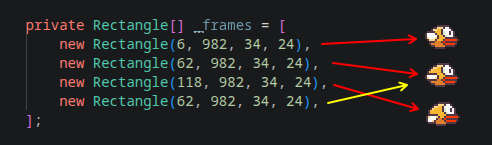
I repeated the mid frame to create a smooth transition before reseting the animation.
_frameElapsed and _frameDuration are the variables needed for our timer.
_currentFrameId is necessary to make a reference of the current frame that our animation will show.
_updateAnim will control when the animation will or not play.
We also need to pass a reference of a GameTime to update the timer.
public class Bird {
    ...
    public void Update(...) {
        ...
        if (_updateAnim)
        {
            float delta = (float)gameTime.ElapsedGameTime.TotalSeconds;
            _frameElapsed += delta;
            if (_frameElapsed >= _frameDuration)
            {
                _frameElapsed -= _frameDuration;
                _currentFrameId++;
                if (_currentFrameId >= _frames.Length)
                    _currentFrameId = 0;
            }
        }
        ...
    }
    public void Draw(...) {
        ...
        var frame = _frames[_currentFrameId];
        batch.Draw(_texture, Position, frame, ...);
    }
}
This is all the necessary to make our animation work:
_frameDuration field.What we need now is to stop the animation when the bird hits some pipe and reset the animation when the game restart.
When you hit the ground, the animation already stops because we are updating it inside the bird's Update method and it is only called by the Game1 class when isn't game over so we don't need to care about this.
public class Bird {
    ...
    private void HandlePipesCollisions(List<Pipe> pipes)
    {
        foreach (var pipe in pipes)
        {
            if (...)
            {
                ...
                _updateAnim = false;
            }
        }
    }
    ...
    public void Reset()
    {
        ...
        _currentFrameId = 0;
        _frameElapsed = 0f;
        _updateAnim = true;
    }
}
Great, we are done now 😉.
If you read so far thank yoooou so much 😍 for the effort, we are almost done with this course 🙌.
I'm sorry if I forgot something, despite this project being very small to develop, writing about it is taking many hours of my day, lol, so for sure I ended up leaving some information out u.u
In any case you can enter in contact with me about these posts.
In the next (and probably last) chapter we will draw some texts in the screen and play some sound 🧡.
See you soon 👋