Adding the UI And Sounds
Hello! 😉
In this (and probably last) chapter we'll draw the player's score, the game's logo, a play button and also play a sound effects.
Demo of this chapter done:
🔊 Unmuted to hear the sound effects.
😵 This footage is from before I remembered that I forgot to add the bird animation.
If you haven't read the previous chapter yet: Implementing the Bird (part 4)
Summary:
- Loading the SpriteFont
- Drawing the Game Score
- Drawing Play Button, Logo and the "Game Over" Label
- Importing, Loading and Unloading the Sound Effects
- CreateInstance?
- Playing the Sound Effects
Loading the SpriteFont
I'll use this font to draw the game score:
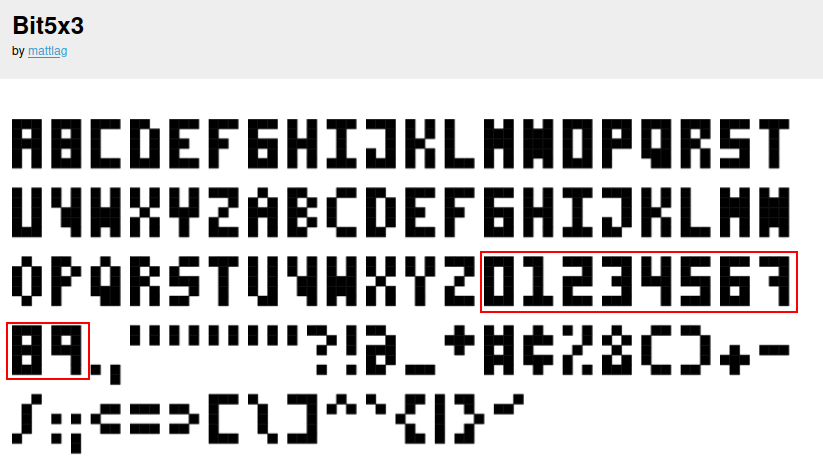
💡 You can download this font in the GitHub repository of this project.
🤔 We could map those numbers in the spritesheet, but for this course I'll use the most simple approach.
You will need to do two things in the MGCB Editor:
- Create a SpriteFont Description (.spritefont)
- Import/copy the Bit5x3 font to the same place as the .spritefont
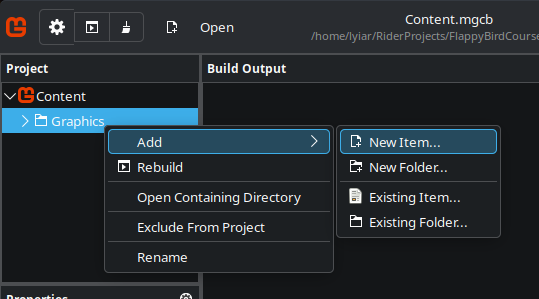
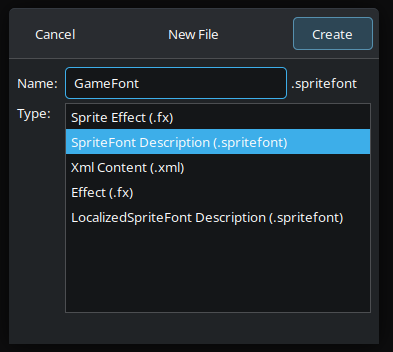
After creating the .spritefonte import the font like you did with textures but before saving, select your font, go to Properties panel and set the Build Action to Copy:
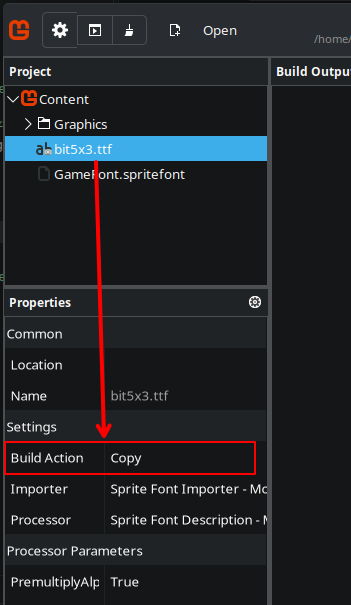
💡 Actually, you could create just a .spritefont and copy manually your font to the Content directory directly, but I decided to copy it to the build directory using the build action for convenience.
You can save now, if you press build right now, depending on the platform you're working a build exception will be thrown, that is OK.
In any case, just save and close the MGCB Editor without building.
Open the .spritefont that you created and look for the tags <FontName> and
<Size> and change both:
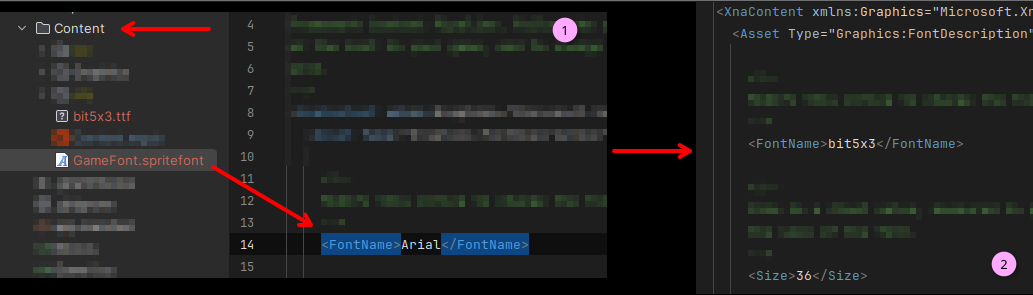
You don't need to include the file extension and the value in <FontName> must match with the exact
name of the font file.
Now if you build your project, everything should work.
Ok, now we can load our font in the same way as we did with our texture:
public class Game1 : Game {
    ...
    private SpriteFont _gameFont;
    ...
    protected override void LoadContent() {
        ...
        _gameFont = Content.Load("GameFont");
    }
    ...
    protected override void Dispose() {
        ...
        _gameFont.Texture.Dispose();
        ...
    }
}
Drawing the Game Score
We will use the DrawString of the SpriteBatch to draw our score
label. It works exactly like the other overloads of the Draw method, except that it expects a
SpriteFont instead of a Texture2D:
protected override void Draw(GameTime gameTime)
{
    ...

    _spriteBatch.DrawString(_gameFont, _score.ToString(), new Vector2(10f), Color.White);

    _spriteBatch.End();

    ...
}
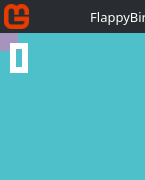
Nice, but unless you want the score positioned at the top left corner of the screen, we need to align it to the center horizontally:
Vector2 center = new Vector2(
    _graphics.PreferredBackBufferWidth,
    _graphics.PreferredBackBufferHeight) / 2f;

_spriteBatch.DrawString(_gameFont, _score.ToString(), new Vector2(center.X, 10f), Color.White);
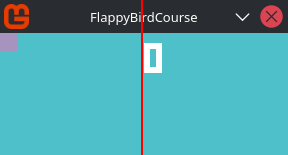
The score is at the center, but not perfectly aligned.
To solve this we need to align the text itself to its own center. We can do this in two ways: by applying an offset the it directly or set it's drawing origin to the center.
Regardless of what you choose, we need somehow get the size that our text drawing have and for this we can use the MeasureString method from our SpriteFont.
Vector2 center = new Vector2(
    _graphics.PreferredBackBufferWidth,
    _graphics.PreferredBackBufferHeight) / 2f;
Vector2 size = _gameFont.MeasureString(_score.ToString());
Vector2 origin = new Vector2(size.X / 2f, 0f);

_spriteBatch.DrawString(_gameFont, _score.ToString(), new Vector2(center.X, 10f), Color.White, 0f, origin, 1f, SpriteEffects.None, 0f);
If you run the game now, the score text should be (almost) perfectly aligned to the center of the screen.
Lets do one last thing (just for style):
...
Vector2 origin = new Vector2(...);

_spriteBatch.DrawString(_gameFont, _score.ToString(), new Vector2(centerX, 12f), Color.Black * 0.5f, 0f, origin, 1f, SpriteEffects.None, 0f);

_spriteBatch.DrawString(...);
...
💡 I duplicated the DrawString() snippet that is drawing our white text, changed it's color to black, make it half transparent and applied a small offset to down.
💡 By the way, you can comment (or remove) all those lines that we were using to draw our objects colliders:
// bird
batch.Draw(_texture, Collider, pixelSrcRect, Color.HotPink * 0.5f);

// pipes
batch.Draw(_texture, TopPipeCollider, pixelSrcRect, Color.Red * 0.5f);
batch.Draw(_texture, BottomPipeCollider, pixelSrcRect, Color.Red * 0.5f);
batch.Draw(_texture, ScoringCollider, pixelSrcRect, Color.Blue * 0.5f);
Drawing Play Button, Logo and the "Game Over" Label
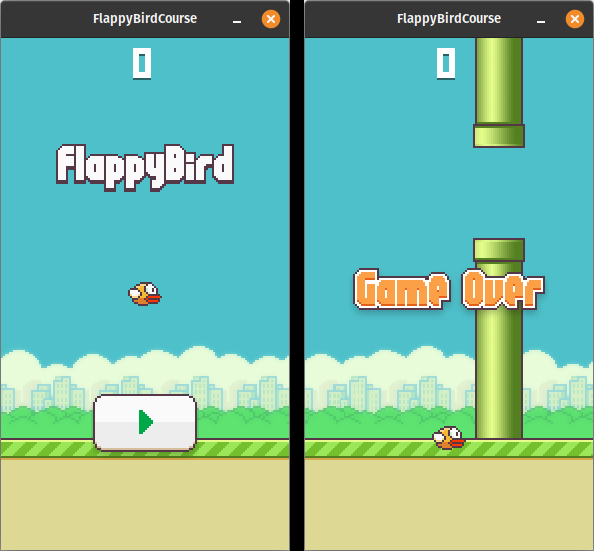
What we need now is to draw these parts of our spritesheet:
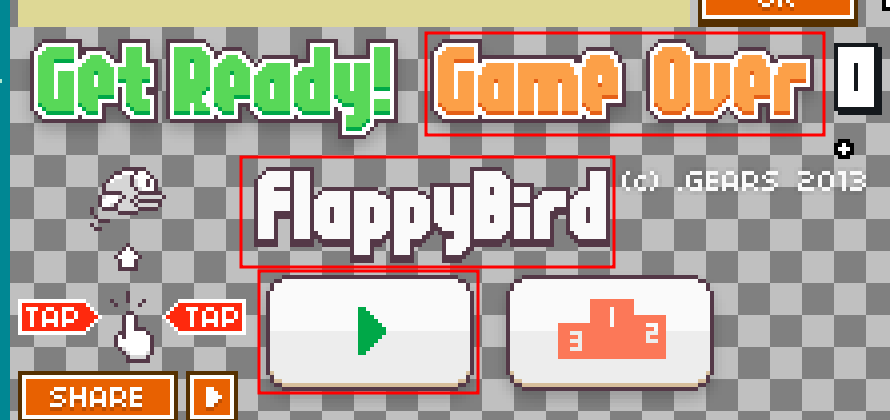
In specific moments:
- The Play button and the game's logo should be drawn at the begin of the game (when
_startis false). - The "Game Over" label should be drawn when the game ends (when
_gameOveris true).
public class Game1 : Game {
    ...
    private Rectangle _flappyBirdLogo = new Rectangle(702, 182, 178, 48);
    private Rectangle _playBtn = new Rectangle(706, 236, 108, 66);
    private Rectangle _gameOverLabel = new Rectangle(786, 118, 200, 52);
    ...
    protected override void Draw(...) {
        ...
        Vector2 center = new Vector2(_graphics.PreferredBackBufferWidth, _graphics.PreferredBackBufferHeight) / 2f;
        ...
        if (!_start)
        {
            _spriteBatch.Draw(_texture,
                center + new Vector2(-(_flappyBirdLogo.Width / 2f), -150f),
                _flappyBirdLogo,
                Color.White);

            _spriteBatch.Draw(_texture,
                center + new Vector2(-(_playBtn.Width / 2f), 100f),
                _playBtn,
                Color.White);
        }

        if (_gameOver)
        {
            _spriteBatch.Draw(_texture,
                center - _gameOverLabel.Size.ToVector2() / 2,
                _gameOverLabel,
                Color.White);
        }

        _spriteBatch.End();
        ...
    }
    ...
}
I preferred to center these sprites through it's position, but you can use the origin also.
Importing, Loading and Unloading the Sound Effects
The last thing we need to finish this course is add sound for: scoring, jump and game over.
You can download the sound effects that I'll use from "The Sound Resources" page: Flappy Bird Sound Effects.
Or from the repository of this project, both will give the same sounds.
Load the sound effects in your project like you did with the font and the texture:
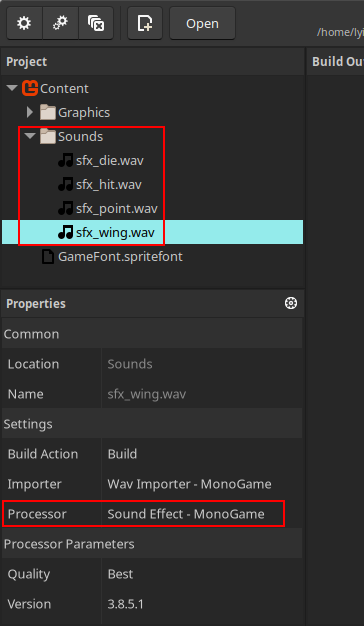
Make sure that Sound Effect - MonoGame is set as Processor. If you audio format is .wav, then Sound Effect will be set as default, but if it is .mp3, then the default processor will be Song. If this is the case, change it manually to Sound Effect.
Lets load and unload the sound effects:
public class Game1 : Game {
    ...
    private SoundEffect _dieSfx;
    private SoundEffect _hitSfx;
    private SoundEffect _pointSfx;
    private SoundEffect _wingSfx;

    private SoundEffectInstance _dieSfxInst;
    private SoundEffectInstance _hitSfxInst;
    private SoundEffectInstance _pointSfxInst;
    private SoundEffectInstance _wingSfxInst;
    ...
    protected override void LoadContent() {
        ...
        _dieSfx = Content.Load<SoundEffect>("Sounds/sfx_die");
        _hitSfx = Content.Load<SoundEffect>("Sounds/sfx_hit");
        _pointSfx = Content.Load<SoundEffect>("Sounds/sfx_point");
        _wingSfx = Content.Load<SoundEffect>("Sounds/sfx_wing");

        _dieSfxInst = _dieSfx.CreateInstance();
        _hitSfxInst = _hitSfx.CreateInstance();
        _pointSfxInst = _pointSfx.CreateInstance();
        _wingSfxInst = _wingSfx.CreateInstance();
    }
    ...
    protected override void Dispose() {
        ...
        _dieSfx.Dispose();
        _hitSfx.Dispose();
        _pointSfx.Dispose();
        _wingSfx.Dispose();
        ...
    }
}
CreateInstance?
I'm not sure about the details (read the disclaimer I put in the Posts page) but apparently when you load a sound effect in your MonoGame project, the data is loaded into the memory but you cannot use it directly. You need some sort of "controller" to configure or even play your sound effect.
When you call Play from the SoundEffect an instance (the controller) is temporarely created internally, it is used and them discarded. We can't do anything else than "play" this temporary instance.
🤫 Some of the overloads accepts some changes like pitch and volume, but depending on your demands having just this isn't enough.
I mean, would be interesting with we could take control of that instance. That is the reason why we use the CreateInstance method.
Through it we can control pitch, volume, play, stop and so on.
A thing to note is that when you call the Play method of SoundEffect directly you'll have the same audio playing multiple times at the same time, this is due that for each Play you call, you have one temporary instance being created and used.
In the other hand, when you call multiple times the Play method from a SoundEffectInstance, in most of the cases, you will have just one audio (a single instance) being played. Calling Play multiple times don't will restart or overlaps the same audio if it is already playing.
🤔 "In most cases" is because, apparently, depending on the platform that your game will run this behaviour isn't ensured, but I think that for most of the cases, it will work as that.
You can have more precise informations about how audio works in MonoGame through MonoGame's documentation:
- Class SoundEffect - MonoGame
- Chapter 14: SoundEffects and Music - MonoGame
- Sounds Overview - MonoGame
Or even asking directly into MonoGame's discord server.
Playing the Sound Effects
Before this, we need to do one change and one addition in the Bird class:
- Add/Expose an action that is triggered when the bird jumps.
- Fix a "bug" that the
IsCollidingWithPipesis being triggered multiple times.
public class Bird {
    ...
    public event Action Jumping;
    ...
    public void Update(...)
    {
        ...
        if (!_isCollidingWithPipe)
        {
            if (KeyboardExtended.IsKeyJustPressed(Keys.Space))
            {
                Velocity.Y = -JumpImpulse;
                Jumping?.Invoke();
            }
            ...
        }
        ...
    }
    ...
    private void HandlePipesCollisions(List pipes)
    {
        foreach (var pipe in pipes)
        {
            if (Collider.Intersects(pipe.BottomPipeCollider) || Collider.Intersects(pipe.TopPipeCollider))
            {
                if (!_isCollidingWithPipe)
                    IsCollidingWithPipes?.Invoke();
                _isCollidingWithPipe = true;
            }
        }
    }
    ...
}
Finally, in our Game1 class we just need to attach a callback to each action that our bird exposes:
public class Game1 : Game {
    ...
    private bool _collidedWithPipe;
    ...
    protected override void LoadContent() {
        ...
        _bird.Jumping += () =>
        {
            _wingSfxInst.Stop();
            _wingSfxInst.Play();
        };
        _bird.IsCollidingWithFloor += () =>
        {
            if (!_collidedWithPipe)
            {
                _hitSfxInst.Stop();
                _hitSfxInst.Play();
            }
        };
        _bird.IsCollidingWithPipes += () =>
        {
            _dieSfxInst.Stop();
            _dieSfxInst.Play();

            _hitSfxInst.Stop();
            _hitSfxInst.Play();
            _collidedWithPipe = true;
        };
        _bird.Scoring += () =>
        {
            _pointSfxInst.Stop();
            _pointSfxInst.Play();
        };
    }
    ...
    public void Reset() {
        ...
        _collidedWithPipe = false;
    }
    ...
}
Calling Stop before Play is to restart the audio in case of it is already playing.
The _collideWithPipe is to avoid that the hit sound effect play twice, when you hit the pipe and the
floor one after another.
🔊 Unmuted to hear the sound effects.
And, this is the end of this course 🎉
Congratulations and thank you so much if you stayed with me so far.
Some informations I passed was probably imprecise or maybe I missed something. I spent some consecutive days and hours writing these posts, testing some things and also learning through the way (after all I'm still a hobbyist just like you... no?).
I hope something in any of these 5 posts has been helpful for you.
This is the last chapter, but not the last course.
See you soon in (probably) the Tetris Course.